 Integrator Desk
Support
Find your way around Integrator Desk or email us for help.
Sign in to your company
- Open Dealer and enter your company code, email, and password.
- If you have a temporary password, follow the prompt to change it.
- If you need a company code or password reset, ask your company administrator. If the workspace fails to load after sign-in, click Retry or refresh the page.
Create a proposal
- Set up the client and your product catalog, then select New proposal.
- Use Add line item to add parts and labor. If the part has suggested labor hours, review the calculated hours and choose whether to add them as a separate line.
- Select Customer preview / PDF to review and save the proposal as a PDF. When the customer approves, select Approve & start job.
Schedule a visit and assign a crew
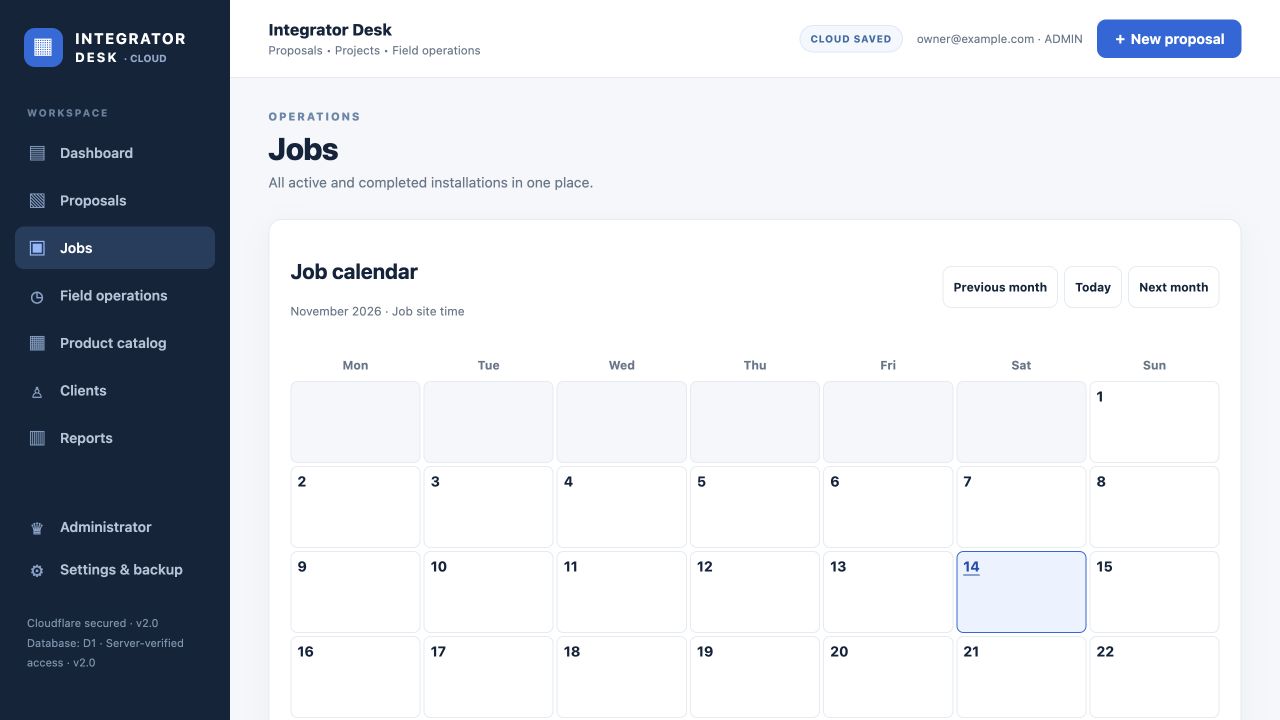
- From Jobs, open an active job and select Schedule visit.
- Enter the date and times in the job site’s local time. Use the Technicians section to assign the crew for the job, then select Save visit.
- Select a date on the Job calendar to see that day’s visits and edit them.
Pick equipment and track time
- On your phone, sign in as a technician, open My jobs, and choose an assigned job.
- Use the Equipment pick list to mark items picked or record a partial quantity and note.
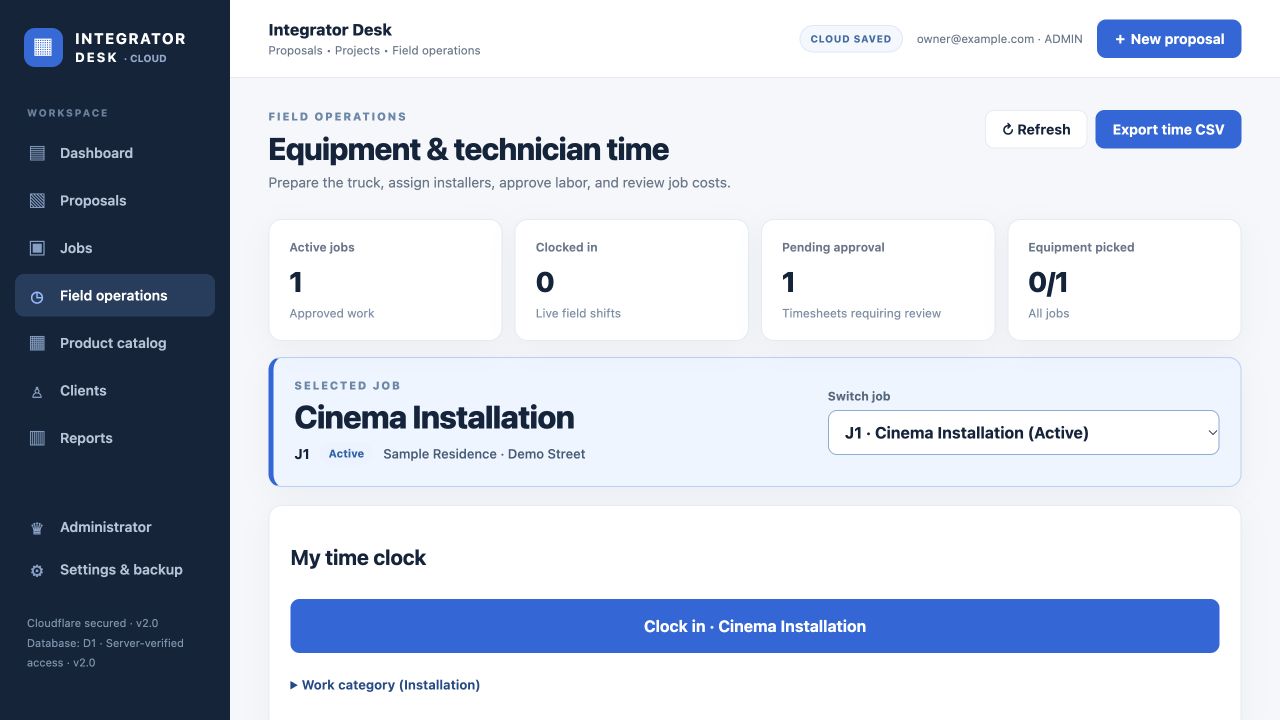
- Use Clock in to start a shift and Clock out to submit it for approval. Office staff can review submitted time in Field operations.
Need more help?
Include your company code, the page you were on, and any error message.
Support@IntegratorDesk.com